
Waline
A safe comment system with backend.
Install
npm i -D @waline/client
LeanCloud Settings (Database)
Click Create app button to create a new app and enter a name you like:

Enter the app, then select
Settings>App Keysat the left bottom corner. You will seeAPP ID,APP KeyandMaster Keyof your app. We will use them later
Deploy to Vercel (Server)
Click the dark button above, it will redirect you to vercel to deploy with waline template.
TIP
If you haven't logged in, we recommend you to sign in with GitHub.
Input your Vercel project name then click
Create.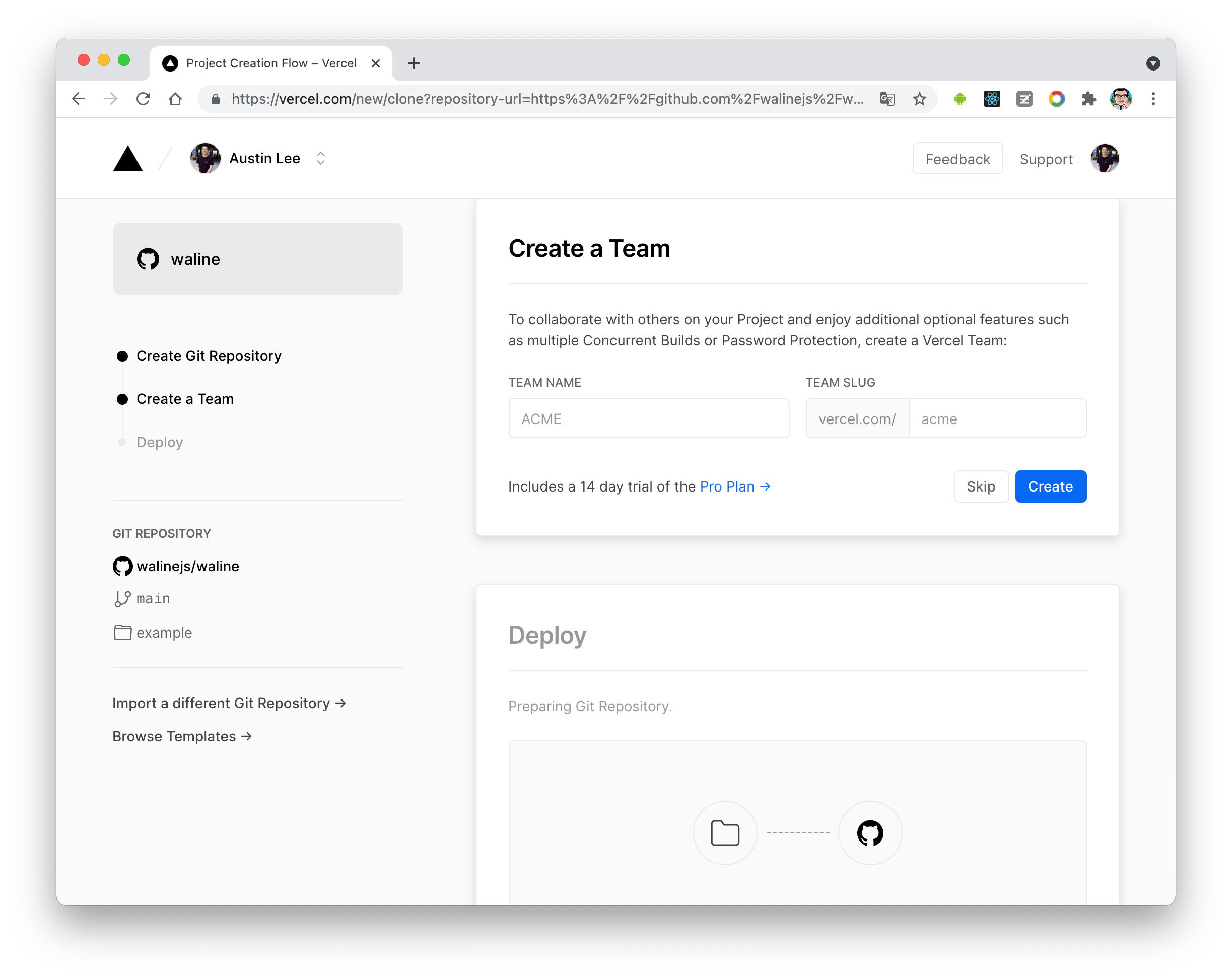
Repo which named you input before will be created and initialized automatically base on waline example template by Vercel.
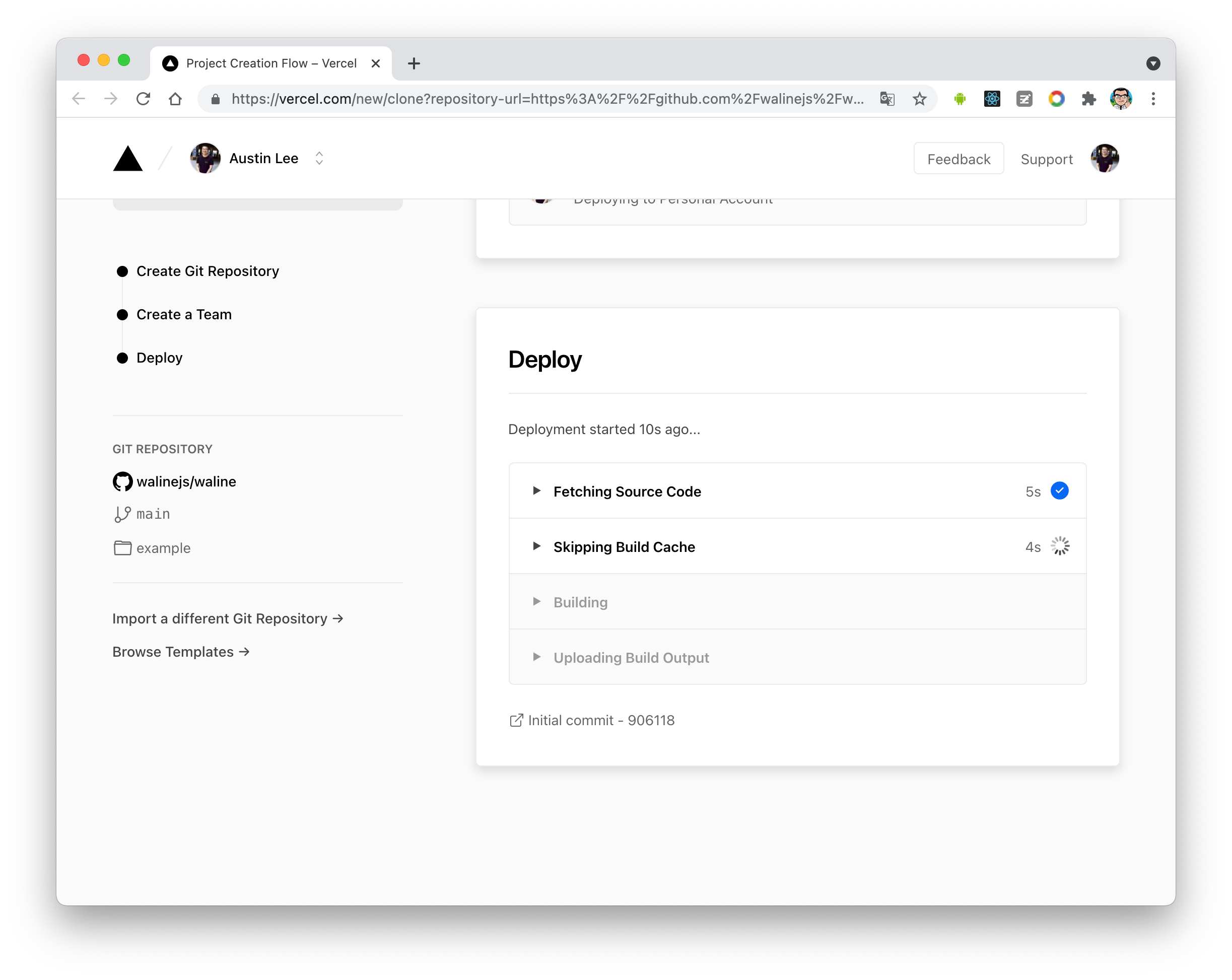
After one minute or two, vercel should finish the deployment. Click
Go to Dashboardbutton to redirect to your application dashboard.
Click
Settingsmenu on the top, andEnvironment Variablesbutton on the side to go to environment variables setting page. Then setLEAN_ID,LEAN_KEYandLEAN_MASTER_KEY. The variables' value should be the ones you got in the previous step.APP IDis the value ofLEAN_ID, andAPP KeytoLEAN_KEY,Master KeytoLEAN_MASTER_KEY.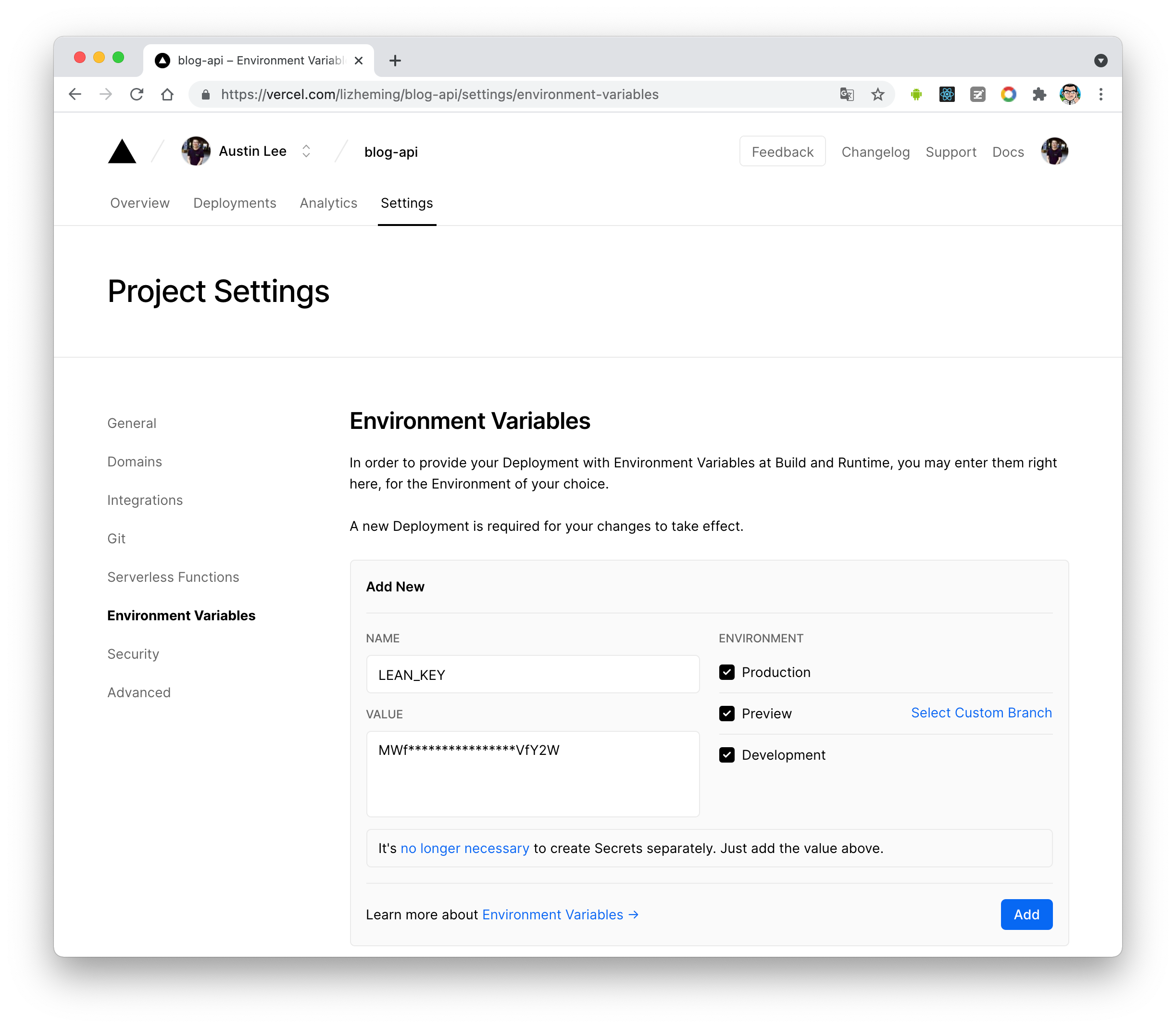
To let your environment variables setting active, you need redeploy your application. Click
Deploymentsmenu on the top and find the latest deployment at the top of list, clickRedeploybutton in the right dropdown menu.
If everything is ok, vercel will redirect to
Overviewpage to start redeployment. Wait a moment theSTATUSwill change toReady. Now you can clickVisitto visit the site. This link is your server address.
Assign Domain (Optional)
Click
Settings-Domainsto go to domain setting page.Input domain you want to assign and click
Addbutton.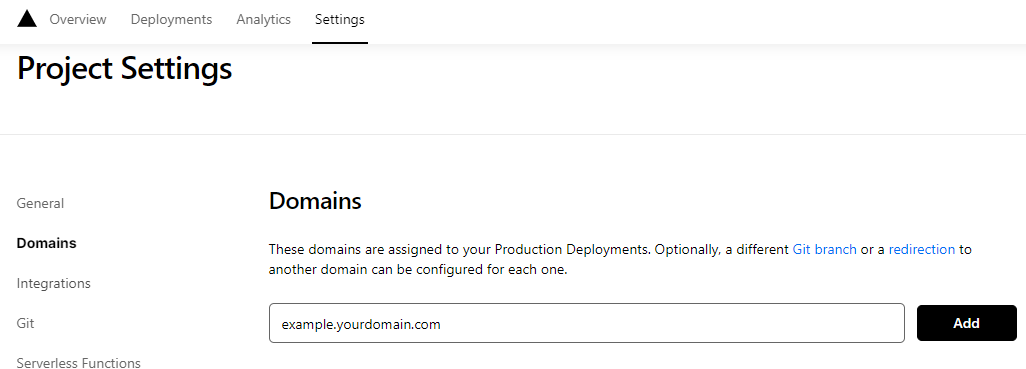
Add a new
CNAMErecord in your domain service server.Type Name Value CNAME example cname.vercel-dns.com You can use your own domain to visit waline comment system after go into effect. 🎉
- serverURL:example.your-domain.com
- admin panel:example.your-domain.com/ui

Client
Using plugin
Set provider: "Waline" in the plugin options, and set serverURL as the link obtained in the previous step.
Then, place the <CommentService> component at a suitable location in your site (usually at the bottom of the page), you will be able to see the comment box.
TIP
You can also pass in other options supported by Waline (except el). For details, see Waline Config
Comment Management (Management)
- After the deployment is complete, please visit
<serverURL>/ui/registerto register. The first person to register will be set as an administrator. - After you log in as administrator, you can see the comment management interface. You can edit, mark or delete comments here.
- Users can also register their account through comment box, and they will be redirected to their profile page after logging in.